ChatGPT Photo Editing: How to Edit Photos With AI
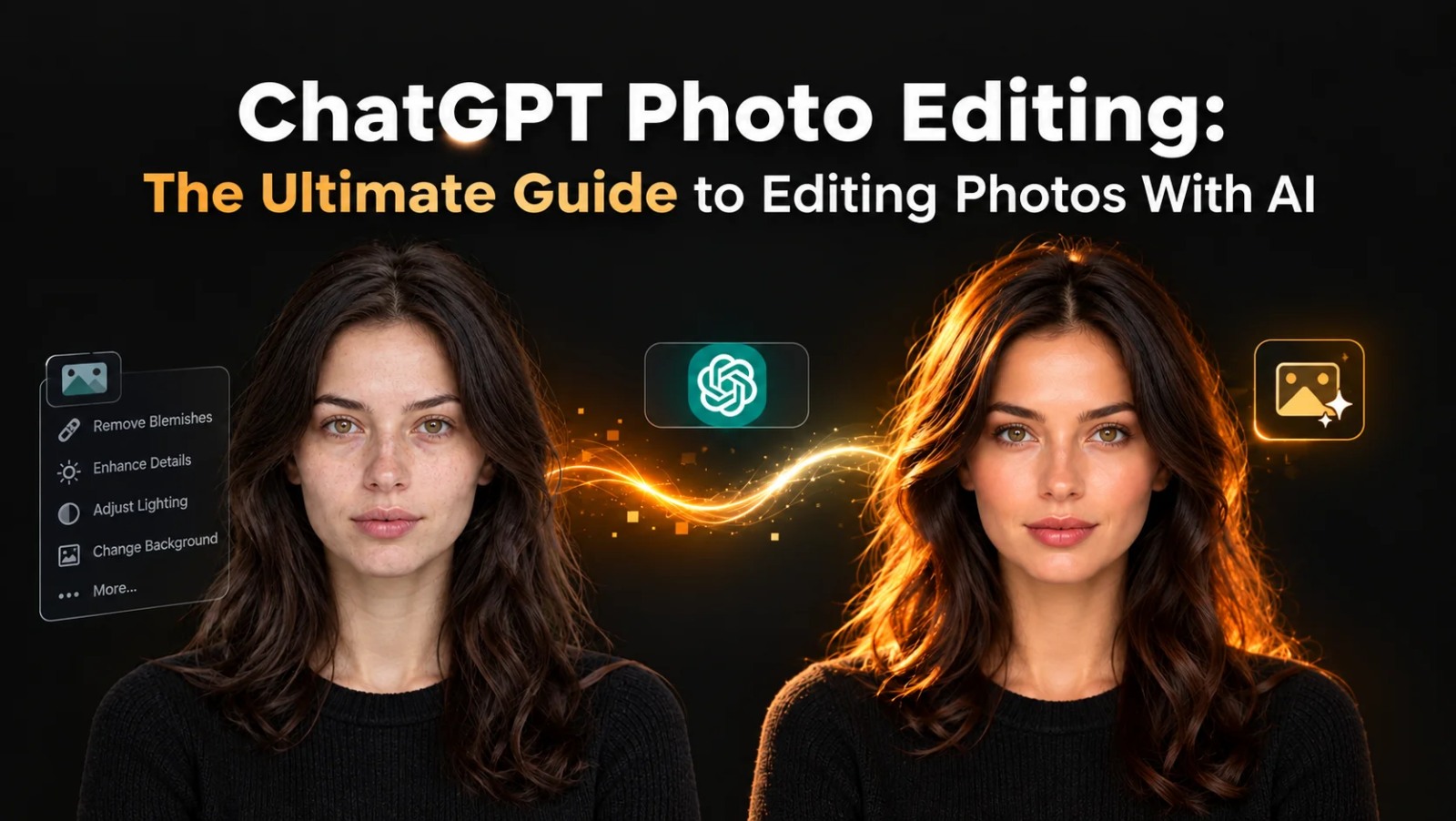
ChatGPT Photo Editing: The Ultimate Guide to Editing Photos With AI
Summarize this blog post with: ChatGPT | Perplexity | Claude | Grok
You've probably already seen people use ChatGPT to turn ordinary photos into cinematic portraits, professional headshots, and creative social-media images. However, the quality of the result depends heavily on how clearly you describe the edit you want. In this guide, you'll learn how ChatGPT photo editing works, what you can edit, how to write better prompts, and which copy-paste prompts you can use for your own photos.
Key Takeaways
ChatGPT photo editing uses AI image capabilities to modify or transform uploaded images according to natural-language instructions.
ChatGPT can edit backgrounds, lighting, colors, clothing, composition, objects, and visual styles while retaining important elements of the original image.
Specific photo editing prompts produce more predictable results because they define the subject, requested changes, visual style, and details that should remain unchanged.
Iterative editing improves results by letting you review an image and give additional instructions instead of trying to describe every adjustment in one prompt.
ChatGPT photo editing works for portraits, selfies, Instagram content, professional photos, couples, product images, and creative transformations.
Dedicated photo editors remain useful when you need precise manual control over layers, masks, selections, or individual pixels.
The most effective workflow is simple: upload your image, describe one clear edit, review the result, and refine the instruction.
What Is ChatGPT Photo Editing?
ChatGPT photo editing is the use of ChatGPT's image capabilities to modify or transform an uploaded photo using natural-language instructions. You can upload an existing image, describe the changes you want, and ask ChatGPT to generate an edited version. OpenAI's current ChatGPT Images experience supports editing existing images and allows users to either select an area to edit or describe the change directly in the conversation.
Moreover, ChatGPT can handle both practical edits and creative transformations. For example, you can ask it to replace a distracting background, improve lighting, change clothing, create a cinematic color treatment, or transform the overall visual style.
OpenAI states that ChatGPT Images 2.5 is designed for sharper details, faster generation, and more precise editing. The company also reports that people create more than 3 billion images every week across ChatGPT Images and GPT-Image models in the API.
How Does ChatGPT Photo Editing Work?
ChatGPT photo editing works by combining an uploaded image with a natural-language editing instruction. The image provides the visual reference, while your prompt tells the model what should change and what should remain consistent.
For example, instead of writing:
Make this photo better.
Use a more specific instruction:
Edit this portrait into a premium cinematic fashion photograph. Keep the person's face, hairstyle, skin tone, facial features, and pose unchanged. Replace the background with a dark luxury studio environment and add soft directional lighting with subtle warm highlights.
The second prompt gives ChatGPT a much clearer editing target.
OpenAI's documentation explains that users can select a specific part of an image and describe the desired modification, or skip selection and explain the edit directly in the conversation.
ChatGPT Photo Editing vs. Traditional Photo Editing
AI photo editing focuses on describing the desired result, while traditional photo editing usually requires direct manual control over image elements.
Feature | ChatGPT Photo Editing | Traditional Photo Editor |
|---|---|---|
Background changes | Natural-language instruction | Manual selection/masking |
Lighting changes | Prompt-based | Manual adjustment |
Creative transformations | Very accessible | Often requires multiple tools |
Layer control | Limited compared with professional editors | Extensive |
Learning curve | Low | Moderate to high |
Best for | Fast AI-assisted edits | Precise professional control |
For example, a beginner can describe “replace the background with a luxury hotel lobby” without knowing how to create a selection mask.
Why Does ChatGPT Photo Editing Matter?
ChatGPT photo editing matters because it makes sophisticated image transformations accessible through ordinary language. Instead of learning every technical control in a professional editor, users can describe the desired outcome and refine it conversationally.
First, speed is one of the biggest advantages. A simple background replacement or creative transformation can begin with one instruction instead of a long sequence of manual operations.
Second, accessibility makes AI editing useful for non-designers. Someone creating an Instagram profile picture, business portrait, or promotional image does not necessarily need advanced Photoshop knowledge.
Third, ChatGPT Images 2.5 is designed to maintain consistency across multiple editing turns. OpenAI says the newer model follows editing instructions more reliably across longer conversations and is better at preserving earlier changes.
OpenAI also reports that Images 2.5 can reduce image-generation latency by up to 50% compared with Images 2.0.
For example, you can start by changing a background, then ask for warmer lighting, and finally request a different aspect ratio without restarting the entire creative process.
How Do You Edit a Photo With ChatGPT?
You can edit a photo with ChatGPT by uploading the image, describing the desired change, reviewing the result, and refining the instruction. The process is simple enough for beginners but flexible enough for more advanced creative workflows.
Step 1: Upload Your Photo
Uploading the original photo gives ChatGPT the visual reference it needs for an image-editing request. On supported ChatGPT interfaces, you can add a photo or file through the attachment controls, then describe what you want to change.
For example, upload a portrait and write:
I want to turn this into a professional LinkedIn-style headshot while keeping my face recognizable.

If the image contains private or sensitive information, remove unnecessary details before uploading it.
Step 2: Describe Exactly What Should Change
A strong photo-editing prompt separates the requested changes from the details that must remain unchanged.
For example:
Change only the background to a modern luxury office. Keep the person, face, hairstyle, clothing, body position, and camera angle unchanged.
This is more useful than simply saying:
Change the background.
OpenAI's current image editor also allows users to select a specific part of an image before describing the change. However, OpenAI notes that selections are not always perfectly precise and edits can extend beyond the highlighted area.
Step 3: Add Style and Lighting Details
Style instructions control the visual character of an AI photo edit. You can specify lighting, color treatment, environment, mood, camera perspective, and photographic style.
For example:
Give the portrait a cinematic editorial look with soft Rembrandt lighting, subtle warm highlights, realistic skin texture, shallow depth of field, and a dark neutral background.
Specific details give the model more useful visual constraints.
Step 4: Review and Refine the Result
Iterative prompting means improving an image through several focused editing instructions. Instead of rewriting the entire prompt after every result, identify one problem and ask ChatGPT to fix it.
For example:
Change the background.
Adjust the lighting.
Restore natural skin texture.
Correct the clothing color.
Change the aspect ratio.
This workflow is particularly useful when you want to preserve several elements while gradually improving the image.
Step 5: Choose the Right Aspect Ratio
Aspect ratio determines the shape and framing of the final image. ChatGPT Images supports different aspect ratios, and OpenAI's editor includes an aspect-ratio control for regenerating an image in a different format.
Use Case | Recommended Aspect Ratio |
|---|---|
Instagram portrait/feed | 4:5 |
Instagram Story/Reel | 9:16 |
Square profile image | 1:1 |
Landscape image | 16:9 |
General portrait | 4:5 |
For more ready-to-use ideas tailored to each format, check out our AI prompts for Instagram collection.
What Types of Photo Editing Can ChatGPT Do?
ChatGPT can assist with background replacement, object changes, lighting adjustments, styling, composition changes, creative transformations, and other image-editing tasks. The exact result depends on the image, the instruction, and the complexity of the requested modification.
Can ChatGPT Change the Background of a Photo?
ChatGPT can replace an image background while allowing you to specify the new environment and visual style. You can request anything from a clean studio backdrop to a city street, luxury interior, beach, office, or cinematic environment.
Try this prompt:
Replace the background with a modern luxury hotel lobby at night. Keep the person completely unchanged, including facial features, hairstyle, skin tone, clothing, body proportions, and pose. Match the lighting on the subject naturally to the new environment.
The key is to explicitly identify the subject as something that should remain unchanged.
Can ChatGPT Improve Lighting and Color?
ChatGPT can modify the visual appearance of an image by requesting changes to lighting, contrast, color, mood, and atmosphere.
For example:
Improve the lighting while preserving realistic skin texture. Add soft directional key light, subtle rim lighting, balanced contrast, natural shadows, and a premium editorial color grade.
This approach is useful when an original photograph has flat lighting or an uninteresting color treatment.
Can ChatGPT Change Clothing or Styling?
ChatGPT can be used for creative clothing and styling transformations by describing the desired outfit while specifying which aspects of the original person should remain consistent.
Try:
Change the person's outfit to a tailored black luxury suit with a minimalist white shirt. Preserve the person's face, hairstyle, body proportions, pose, and identity. Keep the lighting and photographic realism natural.
OpenAI specifically describes clothing and hairstyle transformations as examples of creative image editing.
Can ChatGPT Remove or Add Objects?
ChatGPT can add, remove, or update elements of an image through natural-language editing instructions. You can identify the object directly or use the editor's selection capability to focus the change.
For example:
Remove the trash bin on the right side of the image and reconstruct the pavement and background naturally so there is no visible editing artifact.
For localized changes, selecting the relevant region can make your intention clearer.
How Do You Write Better ChatGPT Photo Editing Prompts?
A good ChatGPT photo editing prompt identifies the subject, requested edit, visual style, composition, and details that should remain unchanged. The goal is not to make the prompt unnecessarily long; the goal is to make the important constraints explicit.
A useful formula is:
Subject + Requested Edit + Preservation Instructions + Environment + Lighting + Style + Composition + Output
For example:
Edit this portrait into a premium cinematic fashion photograph. Keep the person's face, facial features, hairstyle, skin tone, body proportions, and pose unchanged. Replace the background with a dark luxury studio. Add soft Rembrandt lighting, subtle golden rim light, realistic skin texture, shallow depth of field, and an editorial 85mm portrait aesthetic. Maintain natural proportions and photorealistic detail. Use a 4:5 composition.
ChatGPT Photo Editing Prompt #1: Cinematic Portrait
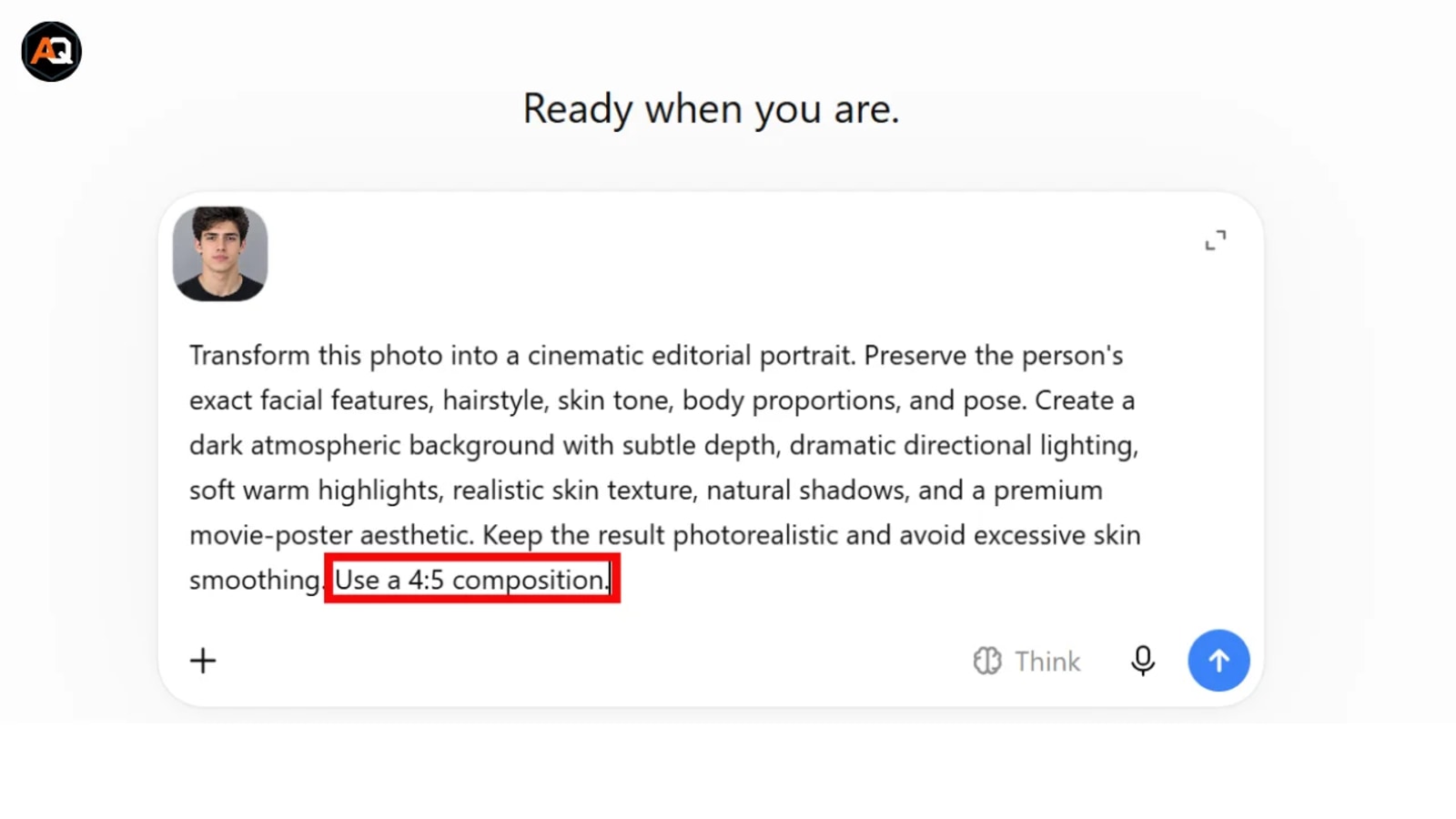
Transform this photo into a cinematic editorial portrait. Preserve the person's exact facial features, hairstyle, skin tone, body proportions, and pose. Create a dark atmospheric background with subtle depth, dramatic directional lighting, soft warm highlights, realistic skin texture, natural shadows, and a premium movie-poster aesthetic. Keep the result photorealistic and avoid excessive skin smoothing. Use a 4:5 composition.
ChatGPT Photo Editing Prompt #2: Professional Headshot
Turn this photo into a polished professional headshot. Keep my face, facial structure, hairstyle, and identity unchanged. Replace the background with a clean modern studio backdrop. Use soft flattering lighting, natural skin texture, subtle contrast, realistic colors, and a professional corporate photography style. Keep the result authentic rather than overly retouched.
ChatGPT Photo Editing Prompt #3: Instagram Fashion Portrait
Edit this portrait into a premium Instagram fashion photograph. Keep my identity, face, hairstyle, body proportions, and pose unchanged. Give the image an editorial luxury aesthetic with dramatic soft lighting, sophisticated neutral tones, subtle background blur, realistic skin texture, and high-end fashion photography composition. Create a clean 4:5 vertical composition.
ChatGPT Photo Editing Prompt #4: Luxury Lifestyle
Transform the background into an elegant luxury hotel interior while keeping the person completely unchanged. Add realistic environmental lighting, subtle depth of field, premium architectural details, natural shadows, and sophisticated color grading. Make the subject appear naturally photographed in the new environment.
ChatGPT Photo Editing Prompt #5: Vintage Film Look
Apply a refined vintage film aesthetic to this photograph. Preserve the person's identity, facial details, composition, and pose. Add subtle film grain, muted colors, gentle contrast, natural skin tones, soft highlights, and authentic analog-film character. Avoid excessive grain or artificial distortion.
Want more ready-made options? Explore our complete guide to ChatGPT prompts for photos, browse our cinematic portrait AI prompts, or check out aesthetic AI prompts for Instagram for platform-specific inspiration.
What Are the Best ChatGPT Photo Editing Prompts for Instagram?
The best Instagram photo-editing prompts specify the platform's visual context, composition, subject preservation, and desired aesthetic. Instagram images often need stronger composition and intentional framing because the final image appears in a highly visual feed.
For example:
Edit this photo for an Instagram fashion post. Preserve my exact face, hairstyle, clothing details, and body proportions. Improve the composition with premium editorial framing, soft cinematic lighting, realistic skin texture, subtle background separation, and sophisticated color grading. Keep the result photorealistic and suitable for a luxury fashion profile. Use a 4:5 vertical composition.
For Stories and Reels, specify 9:16 vertical framing and request enough negative space if you plan to add text. If you're building out a full Instagram profile, check out our AI prompts for Instagram profile pictures, or explore our full library of trending AI image prompts for more inspiration.
What Are the Most Common ChatGPT Photo Editing Mistakes?
The most common ChatGPT photo-editing mistakes are vague instructions, too many unrelated changes, missing preservation requirements, and unrealistic expectations. Avoiding these mistakes can make your editing workflow significantly more predictable.
Mistake 1: Using Vague Prompts
Vague prompts give the AI too much freedom over the result.
Instead of:
Make me look better.
Try:
Improve the lighting and color grading while preserving my facial features, hairstyle, skin texture, pose, and clothing.
Mistake 2: Asking for Too Many Changes at Once
Complex prompts can become harder to control when they request many unrelated transformations simultaneously.
For example, changing the background, clothing, hairstyle, facial expression, pose, lighting, camera angle, and environment in one request may produce an unpredictable result.
Instead, make the workflow iterative.
Mistake 3: Forgetting Preservation Instructions
Preservation instructions tell the model which important visual characteristics should remain stable.
Useful phrases include:
“Keep the face unchanged.”
“Preserve the original pose.”
“Maintain realistic skin texture.”
“Keep the clothing details.”
“Do not change the person's identity.”
“Preserve the original composition.”
Mistake 4: Expecting Pixel-Level Precision
AI editing is not identical to manual pixel-level editing. Selection boundaries can be imperfect, and OpenAI notes that edits may extend beyond the selected area.
For example, if you select a person's jacket and request a color change, nearby areas may occasionally be affected.
What Tools Can You Use for ChatGPT Photo Editing?
ChatGPT Images is the primary ChatGPT-native tool for generating and editing images through natural-language instructions. OpenAI's current experience is available on web and mobile, and OpenAI states that ChatGPT Images is available across all ChatGPT tiers, subject to applicable usage limits.
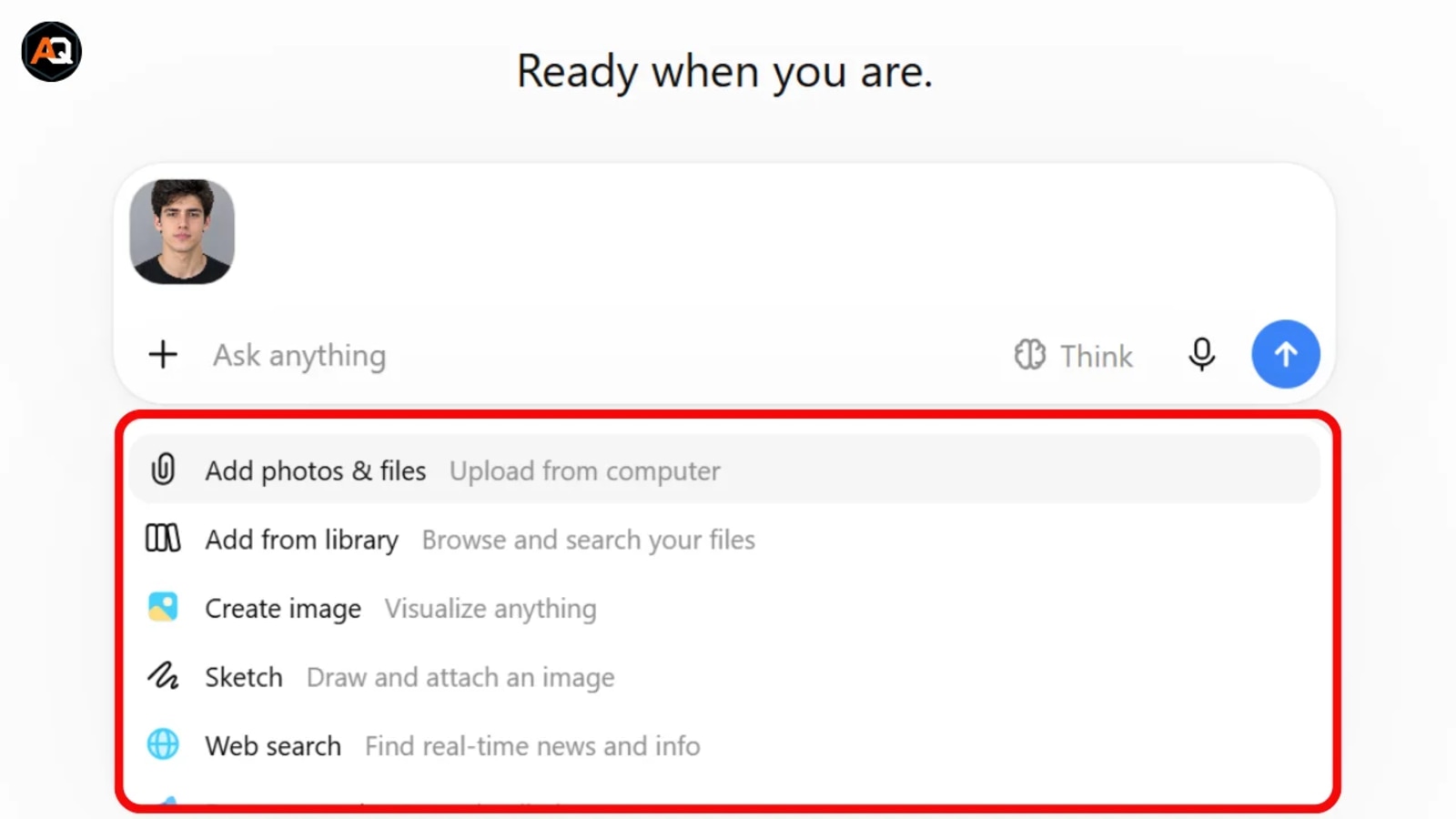
You can also use the editor's selection controls when you want to target a particular part of an image. OpenAI's documentation explains that the editor supports selecting an area, changing the aspect ratio, undoing or redoing selections, and saving the finished image.
What About Free Alternatives?
Free and third-party image editors can complement ChatGPT when you need manual control or specialized adjustments. For example, browser-based editors can be useful for cropping, resizing, masking, or applying conventional adjustments after an AI-generated edit.
A practical workflow is:
Use ChatGPT for the creative transformation.
Review the generated image.
Use a traditional editor for precise cropping or finishing.
Export the image in the correct format and dimensions.
For more ready-to-use ideas, browse our full AI image prompts for creators library and pair them with this workflow.
What About ChatGPT's New Image Features?
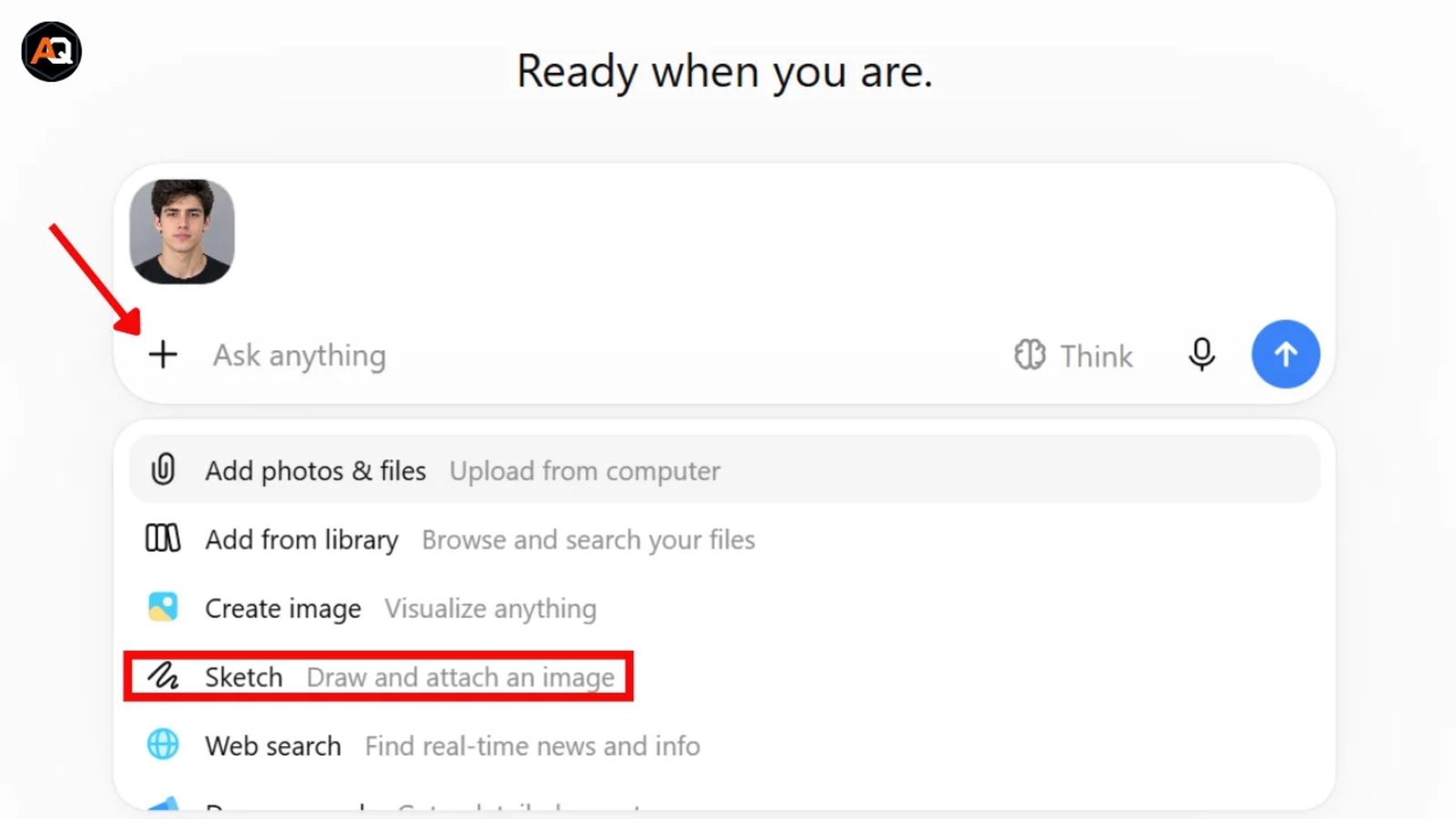
ChatGPT Images 2.5 adds more precise editing, multi-turn consistency, templates, and sketch-based image creation. OpenAI announced the 2.5 update on September 8, 2026, including improved instruction following and new ways to create and edit images.
OpenAI reports that Images 2.5 is better at preserving subjects and making focused edits while maintaining surrounding composition and details.
The current ChatGPT Images documentation also says users can create images from templates and on desktop, mobile, and web turn sketches into generated images using the Sketch feature.
What's Next? How Can You Get Better at ChatGPT Photo Editing?
The best way to improve at ChatGPT photo editing is to build a repeatable prompt-and-refinement workflow. You do not need to memorize hundreds of prompts; you need to understand how to describe the result you want.
First, choose one clear editing goal.
Second, identify what must remain unchanged.
Third, describe the environment and visual style.
Fourth, specify the composition or aspect ratio.
Finally, review the result and make one focused correction at a time.
A simple workflow looks like this:
Upload → Describe → Generate → Review → Refine → Export
For example, if a cinematic portrait changes your face too much, do not completely rewrite the prompt. Instead, say:
Keep the current image and restore the original facial features and hairstyle while preserving the cinematic lighting and background.
This approach makes your instructions easier to evaluate and your results easier
to refine.
Once you're comfortable with this workflow, explore more targeted prompt
collections — including AI photo prompts, prompts for male portraits,
and AI prompts for couples to apply the same refinement process to different photo types.
Conclusion
ChatGPT photo editing turns many image-editing tasks into conversational instructions instead of complicated manual workflows. You can upload a photo, describe a specific change, review the result, and continue refining it until the image better matches your goal.
Moreover, the best results come from specific prompts rather than vague requests. Describe the subject, define the edit, protect important details, specify the visual style, and make refinements one step at a time.
ChatGPT's current image tools are increasingly capable of precise, multi-turn editing, while traditional editors remain valuable for tasks that require exact manual control.
Start with one photo and one clear editing goal. Once you understand how to structure your instructions, you can turn the same workflow into portraits, Instagram content, professional headshots, cinematic images, and much more.
Browse our full collection of AI photo editing prompts to get started faster.
FAQS
Can You Use ChatGPT to Edit Photos?
Yes. ChatGPT can edit uploaded photos by changing backgrounds, removing objects, adjusting styles, and making other image modifications through natural-language instructions.
How to Use ChatGPT for Free for Photo Editing?
Free users can upload images and use ChatGPT’s image tools, although image generation and editing have separate usage limits.
How Good Is ChatGPT at Editing Photos?
ChatGPT is effective for creative edits, background changes, styling, and visual transformations, with the latest image tools offering more precise editing and better instruction following.
How Many Photos Will ChatGPT Edit for Free?
There is no fixed public number of free photo edits; image generation and uploads have separate limits that can change, and ChatGPT notifies you when you reach a limit.
How Long Does It Take for ChatGPT to Edit a Picture?
Most edits can take from seconds to a few minutes, depending on the complexity of the request. OpenAI notes that image generation may take a few minutes for more complex requests.
Written by The AQPrompts Team — AI prompt researchers and content creators focused on practical AI image-generation and prompting workflows.
Reviewed by Abdul Qudoos — reviewed for AI image-generation accuracy, practical prompting guidance, and current ChatGPT image-editing capabilities.
Disclaimer: This article was initially drafted using AI assistance. However, the content has undergone thorough revisions, editing, and fact-checking by human editors and subject matter experts to ensure accuracy.
Learn how we review our guides →
Topics:
Abdul Qudoos creates and reviews AQPrompts guides and prompt-library content for creators using AI image tools.
