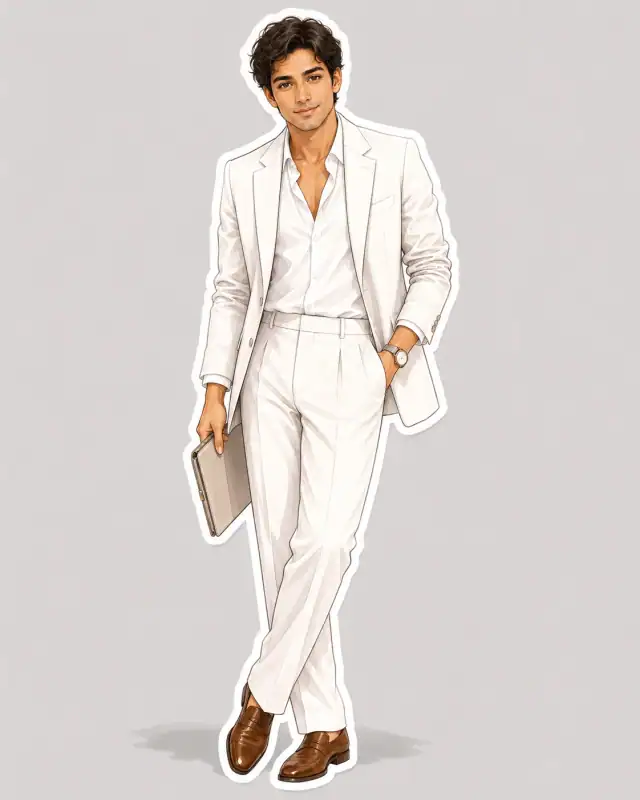
Use the copy button above to grab the complete prompt with your selected aspect ratio.
Step 02
Open your AI tool
Use a generator that supports the input and reference-image features you need.
Step 03
Generate your image
Create variations, pick the best result, then download and use it in your content.
Common Output Problems
Issues you may encounter and how to fix them
The face doesn't look like the reference photo or appears distorted+
Why it happens
AI models sometimes reinterpret facial features rather than preserving them exactly, especially with complex poses, unusual lighting, or low-quality reference images.
Fix
Use a well-lit, front-facing reference photo with clear facial features. Add "preserve exact facial structure, proportions, and likeness from the reference" at the beginning of the prompt.
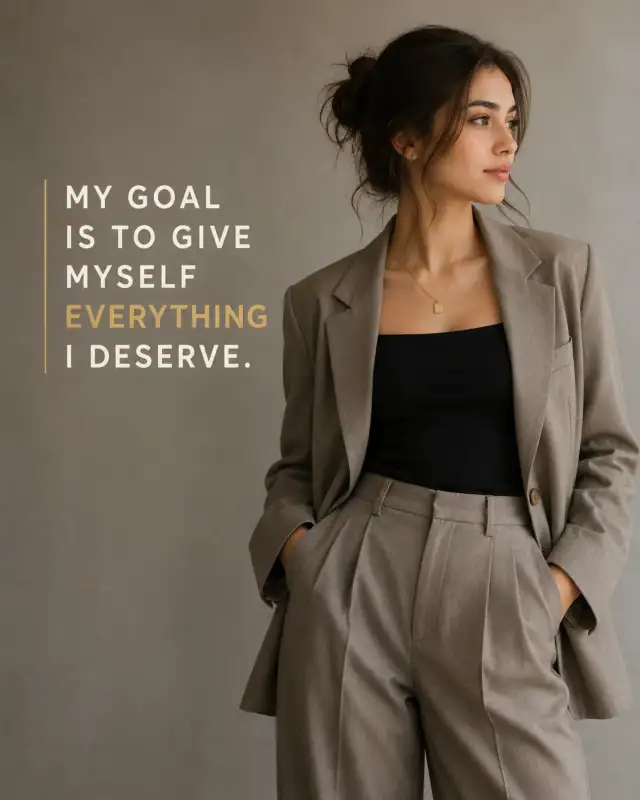
The wool blazer texture appears flat or loses its characteristic sheen and detail+
Why it happens
AI models often render textured fabrics as smooth surfaces because fine material detail requires specific rendering instructions beyond basic color and shape.
Fix
Add "preserve visible wool blazer texture with characteristic light reflections on folds, realistic weave pattern and drape" to guide the model toward accurate fabric rendering.
The image lacks the professional quality or sharpness described in the prompt+
Why it happens
Some AI models prioritize artistic interpretation over photorealistic rendering, especially when the prompt contains both stylistic and technical instructions.
Fix
Move all camera and quality specifications to the beginning of the prompt and add "ultra-sharp focus on the subject, fine detail rendering, professional photography quality" to reinforce the desired output.
Customize This Prompt
Adapt these elements to fit your vision
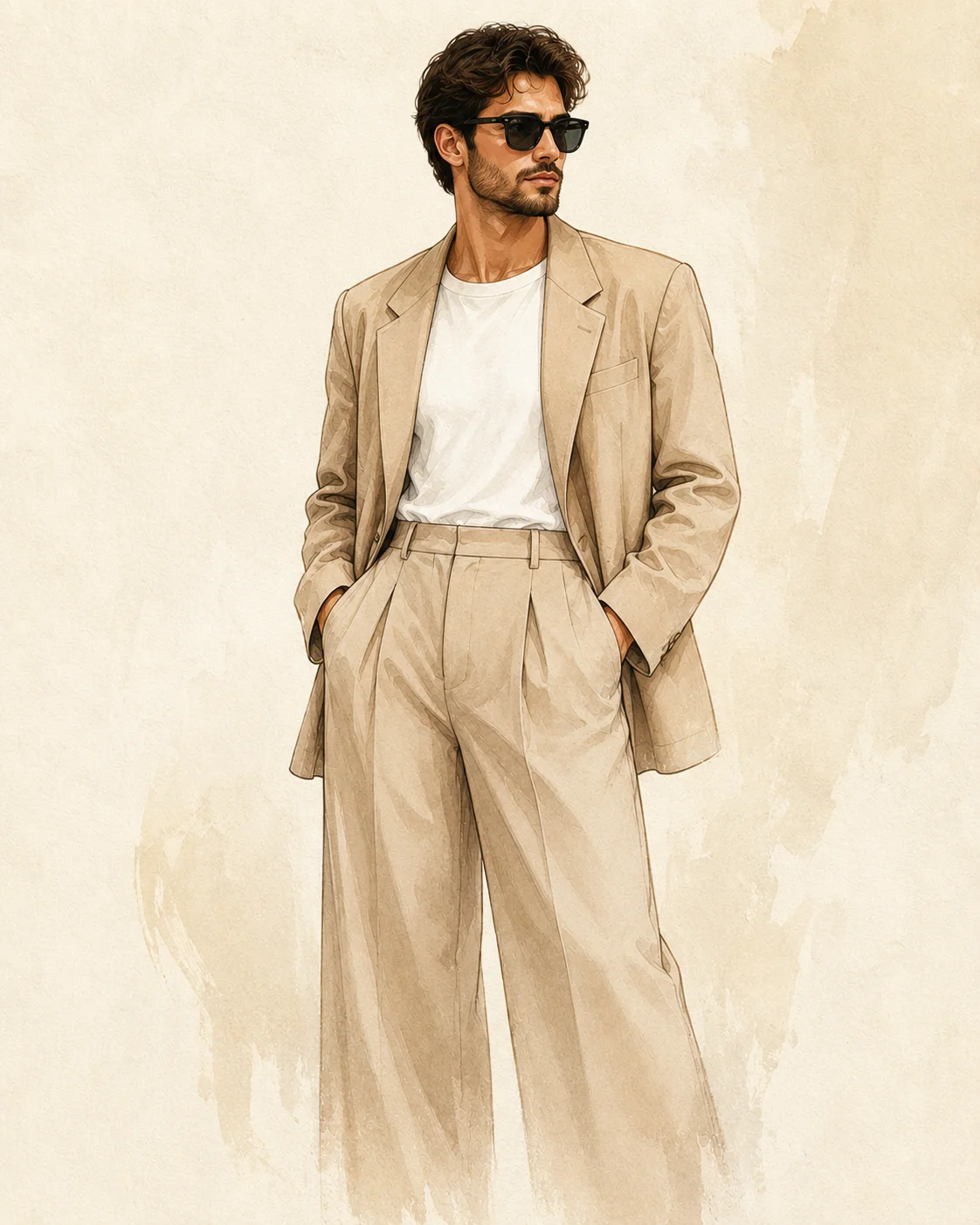
Swap the wool blazer for a beige alternative to shift the mood — different fabric colors dramatically change the overall tone of the portrait.
Move the setting outdoors to a park or urban location to add environmental context and natural lighting variation.
Add a colored rim light (warm amber or cool teal) to introduce cinematic color contrast without changing the composition.
Remove the sunglasses for a cleaner, less accessorized look, or swap it for a different style to match your branding.
Which AI Tools Can I Use?
This prompt works with popular AI image generators.
Links to official tool websites. Not a claim that this prompt was tested in every tool or model version.
Frequently Asked Questions
Quick answers before you copy this prompt
Do I need to upload a reference photo to use this prompt?+
Yes, this prompt is designed for reference-image workflows. Upload a clear, well-lit photo of the subject. If you remove the identity-preservation instructions, the model will generate a new face instead.
Which AI image generator works best with this prompt?+
This prompt is compatible with ChatGPT, Midjourney, and Leonardo AI. Each generator interprets the instructions slightly differently — ChatGPT tends to follow composition rules closely, Midjourney excels at color grading, and Leonardo AI handles photorealistic textures well.
How do I adapt this for different social media platforms?+
Use 4:5 for Instagram feed posts (best vertical coverage), 1:1 for profile pictures and square grids, and 9:16 for Stories and Reels. For landscape platforms like Twitter/X, try 16:9 but note the full-body composition may need adjustment.
How do I get more dramatic lighting on the face?+
Specify the light position and intensity: "dramatic key light from 45-degree angle, deep shadows on the opposite side, subtle fill light to prevent total blackness" for more cinematic, moody studio lighting.