Royal Blue Watercolor Splash Double Exposure Prompt
Photo Editing Prompts
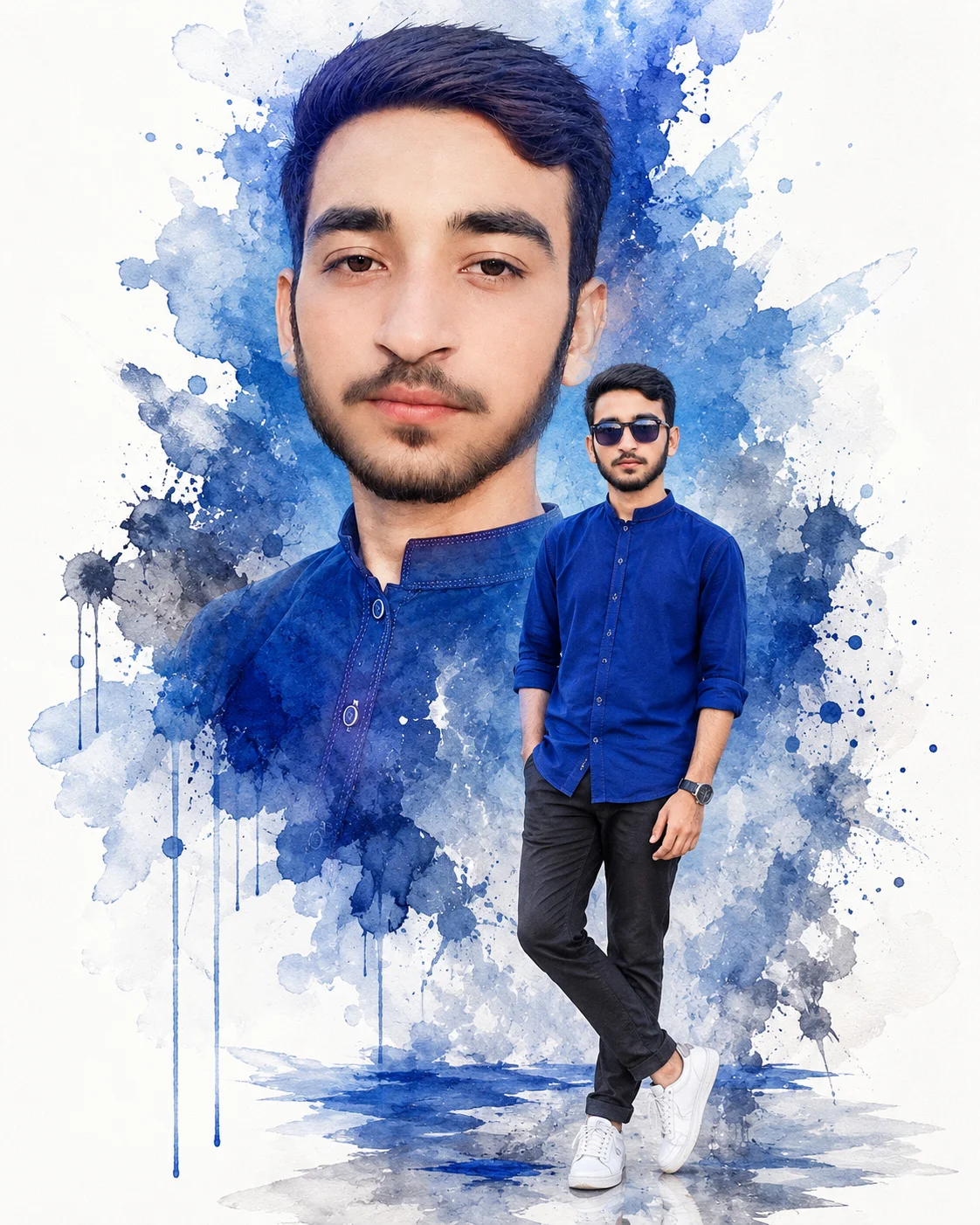
Infuse your website's art bank with breathtaking mixed-media elegance using this premium royal blue watercolor double-exposure prompt. By contrasting an explosive, textured macro-portrait background with a sharp, full-body street style foreground, this layout strikes a masterful balance between fine art painting and modern fashion photography. The bleeding ink splatters and fluid watercolor drips anchor the deep black trousers and rich blue button-up, delivering a sophisticated, gallery-ready design for clients searching for high-impact promotional graphics or premium wall art prints.
Identity preservationPhotorealistic outputEditorial lightingDepth of field
Aspect Ratio
Select before copying
Recommended: 4:5 — 4:5 vertical frame provides space for both the main subject and the semi-transparent overlay without crowding either compositional element.
Rate this prompt
Be the first to rate
Free prompt — one-click copy, no login required
Visual Character
Color
Premium double-exposure watercolor portrait of a young man, preserving 100% exact facial structure, hairstyle, beard, skin tone, and feature
Background
In the background, a large close-up portrait of the subject occupies the upper two-thirds of the canvas, looking confidently toward the came
Mood
Set against a clean white backdrop with artistic blue paint splashes extending around both figures, soft cinematic daylight, high-resolution
Full Prompt
Best For
Fine-art gallery digital showcasesluxury lifestyle brand posterscreative media kitsand high-end personal branding graphics.
How To Use This Prompt
Step 01
Copy the prompt
Use the copy button above to grab the complete prompt with your selected aspect ratio.
Step 02
Open your AI tool
Use a generator that supports the input and reference-image features you need.
Step 03
Generate your image
Create variations, pick the best result, then download and use it in your content.
Common Output Problems
Issues you may encounter and how to fix them
The face doesn't look like the reference photo or appears distorted+
Why it happens
AI models sometimes reinterpret facial features rather than preserving them exactly, especially with complex poses, unusual lighting, or low-quality reference images.
Fix
Use a well-lit, front-facing reference photo with clear facial features. Add "preserve exact facial structure, proportions, and likeness from the reference" at the beginning of the prompt.
The double-exposure overlay appears muddy, blended incorrectly, or obscures the main subject+
Why it happens
AI models struggle to layer two semi-transparent versions of the same subject without merging them into a single indistinct mass.
Fix
Describe the foreground and overlay as two clearly separate compositional layers with explicit opacity and positioning for each. Specify "semi-transparent overlay at 30-40% opacity, positioned in the upper-right corner, fading toward the bottom."
The image lacks the professional quality or sharpness described in the prompt+
Why it happens
Some AI models prioritize artistic interpretation over photorealistic rendering, especially when the prompt contains both stylistic and technical instructions.
Fix
Move all camera and quality specifications to the beginning of the prompt and add "ultra-sharp focus on the subject, fine detail rendering, professional photography quality" to reinforce the desired output.
Customize This Prompt
Adapt these elements to fit your vision
Swap the black trousers for a blue alternative to shift the mood — different fabric colors dramatically change the overall tone of the portrait.
Adjust the lighting direction to create more dramatic shadows and depth — try moving the key light from front to a 45-degree angle.
Remove the sunglasses for a cleaner, less accessorized look, or swap it for a different style to match your branding.
Which AI Tools Can I Use?
This prompt works with popular AI image generators.
Links to official tool websites. Not a claim that this prompt was tested in every tool or model version.
Frequently Asked Questions
Quick answers before you copy this prompt
Do I need to upload a reference photo for this prompt to work?+
Yes, this prompt is designed for reference-image workflows. Upload a clear, well-lit photo of the subject's face. A front-facing photo with visible facial features produces the best identity preservation. Removing the identity-preservation instructions will cause the model to generate a new face.
How do I control the opacity and positioning of the double-exposure overlay?+
Specify exact opacity levels and positions for each layer: "foreground subject at full opacity, semi-transparent overlay at 30-40% opacity, positioned in the upper-right corner, fading toward the bottom." The default behavior merges both layers at similar opacity, which often looks muddy.
How do I keep the subject recognizable in the watercolor style?+
Emphasize "preserve the subject's unique facial proportions, eye shape, and bone structure within the watercolor rendering style." The more specific the facial description, the better the identity preservation in stylized output.
What should I change if the subject looks distorted or unnatural?+
Simplify the pose description and remove conflicting instructions. Add "natural relaxed pose, correct body proportions, anatomically coherent" at the beginning. If the face looks wrong, add "preserve exact facial structure and proportions" and use a higher-quality reference photo.