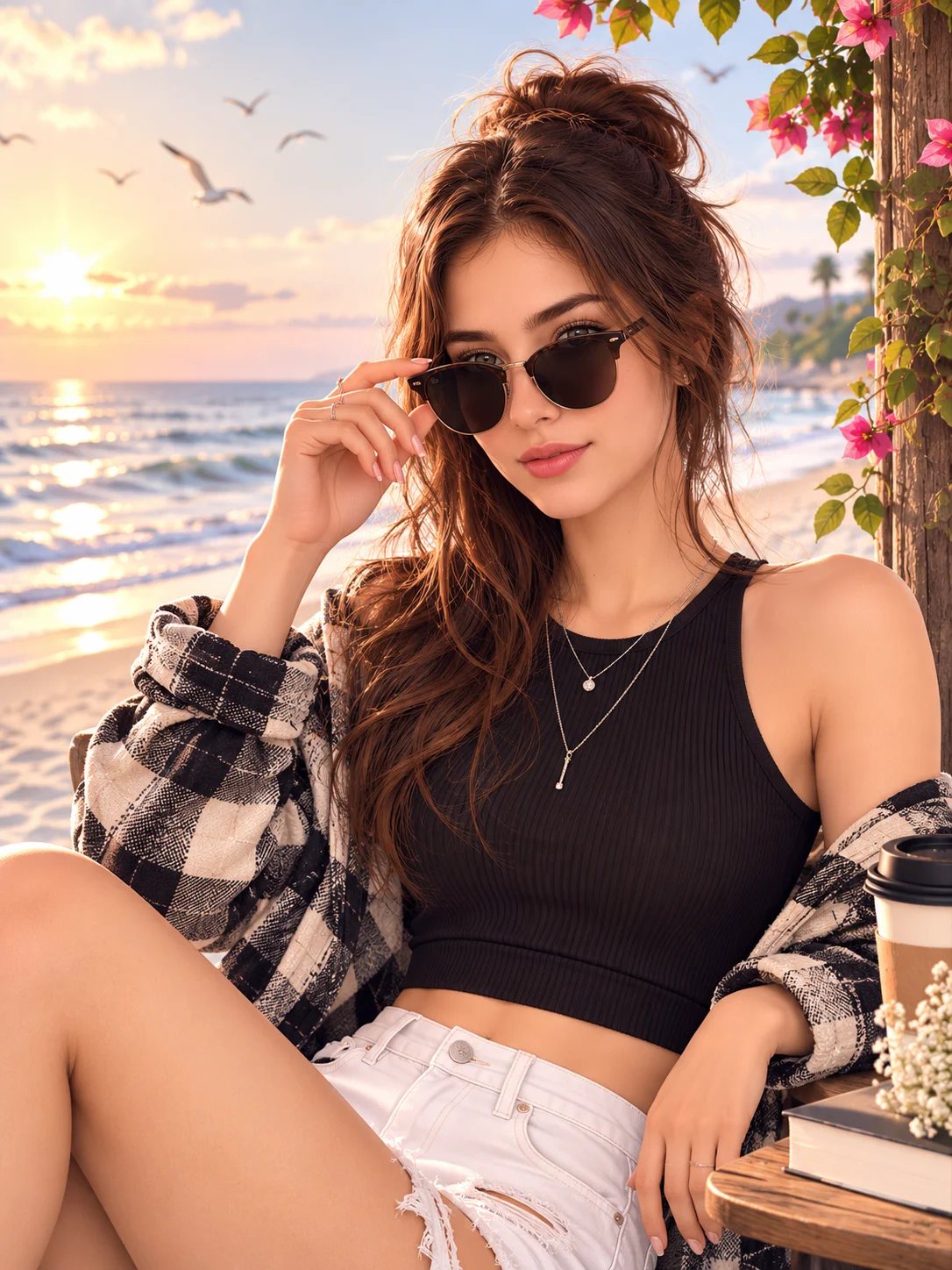
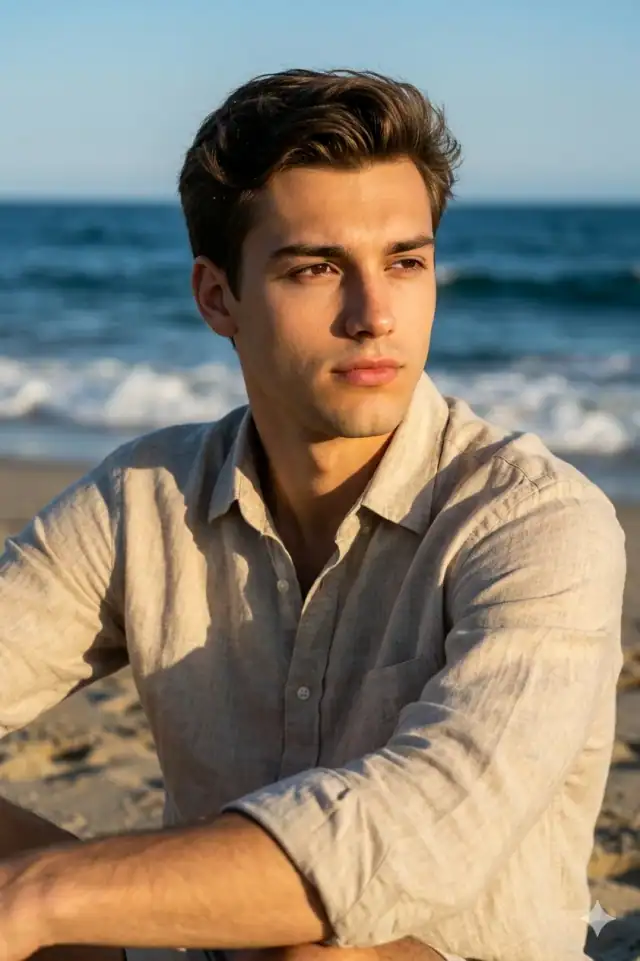
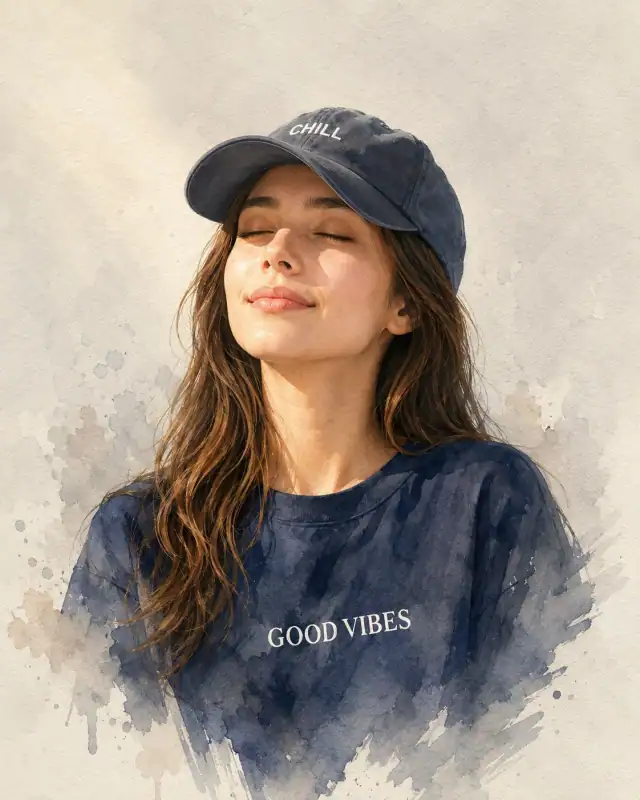
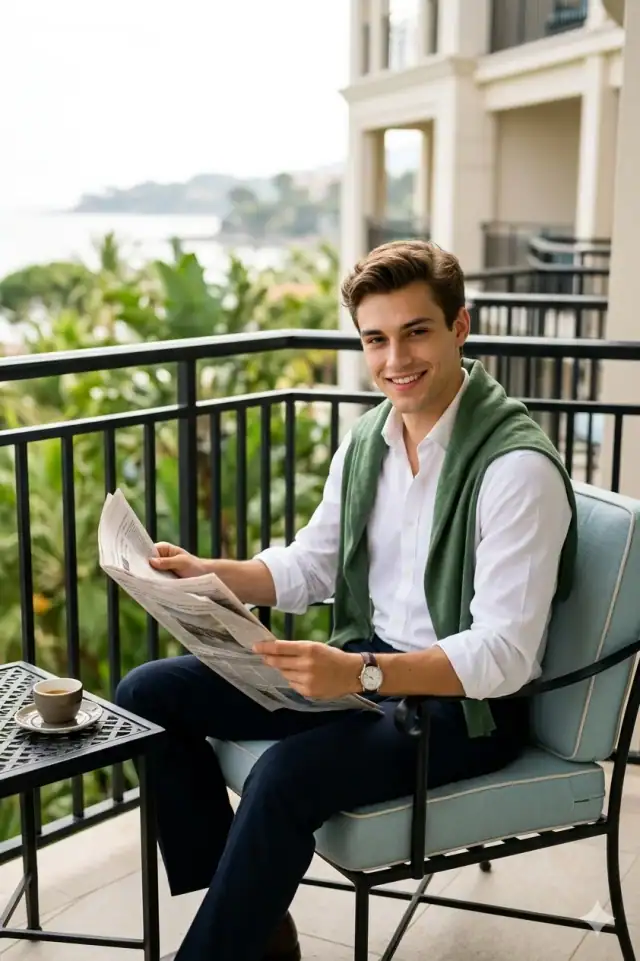
Use the copy button above to grab the complete prompt with your selected aspect ratio.
Step 02
Open your AI tool
Use a generator that supports the input and reference-image features you need.
Step 03
Generate your image
Create variations, pick the best result, then download and use it in your content.
Common Output Problems
Issues you may encounter and how to fix them
The dress fabric appears physically disconnected from the sunglasses, as if composited rather than naturally interacting+
Why it happens
AI generators may render the subject and furniture as separate visual layers without proper shadow interaction and weight distribution at contact points.
Fix
Specify natural shadow contact between the dress and sunglasses with consistent lighting across both surfaces.
The top visible under the dress creates an awkward layering effect at the chest area+
Why it happens
AI generators may render the inner top as a separate floating element rather than naturally layered beneath the outer dress.
Fix
Specify natural garment layering with the top visible only at the collar and cuffs beneath the dress.
Customize This Prompt
Adapt these elements to fit your vision
Replace the beach background with a minimalist studio backdrop to isolate the subject and create a cleaner, more focused composition.
Soften the neon glow to a warm amber tone for a more natural, editorial feel while maintaining the dramatic edge.
Change the expression from calm to direct eye contact for a more engaging, connection-driven portrait.
Remove the sunglasses for a cleaner, less accessorized look, or swap it for a different style to match your branding.
Which AI Tools Can I Use?
This prompt works with popular AI image generators.
Links to official tool websites. Not a claim that this prompt was tested in every tool or model version.
Frequently Asked Questions
Quick answers before you copy this prompt
Do I need to upload a reference photo to use this prompt?+
Yes, this prompt is designed for reference-image workflows. Upload a clear, well-lit photo of the subject. If you remove the identity-preservation instructions, the model will generate a new face instead.
Why does the text in the generated image look wrong or misspelled?+
AI image generators struggle with text rendering. Keep text to 1-3 words maximum, use simple fonts, and add "clean sharp text, no placeholder characters" to improve accuracy. For perfect text, consider adding it in post-processing.
What aspect ratio works best for this composition?+
4:5 is recommended for Instagram feeds and portrait-style layouts. Use 1:1 for profile pictures or square-format social posts. 9:16 works for Stories and Reels covers, but may crop important composition elements.
The skin looks too smooth or artificial. How do I make it more realistic?+
Add "natural skin texture with visible pores, subtle imperfections, realistic skin tone variation" to the prompt. Avoid words like "flawless" or "perfect skin" which push models toward artificial smoothness.